How to make an AI influencer livestream video
The phone-POV livestream is the format that works best for AI characters on TikTok: one continuous take, the character talking straight to her viewers. Here is how we make them, step by step, with the prompts.
What the format is
A recorded video that looks like a clip from a live stream: the character holds her phone at arm's length or props it on a table and talks to the camera as if to her chat, in one continuous take. Room tours, storytimes, tutorials, mukbangs, get-ready-with-me and dance trends all fit it. It is not a real-time stream; it is a 10 to 30 second video you post like any other.
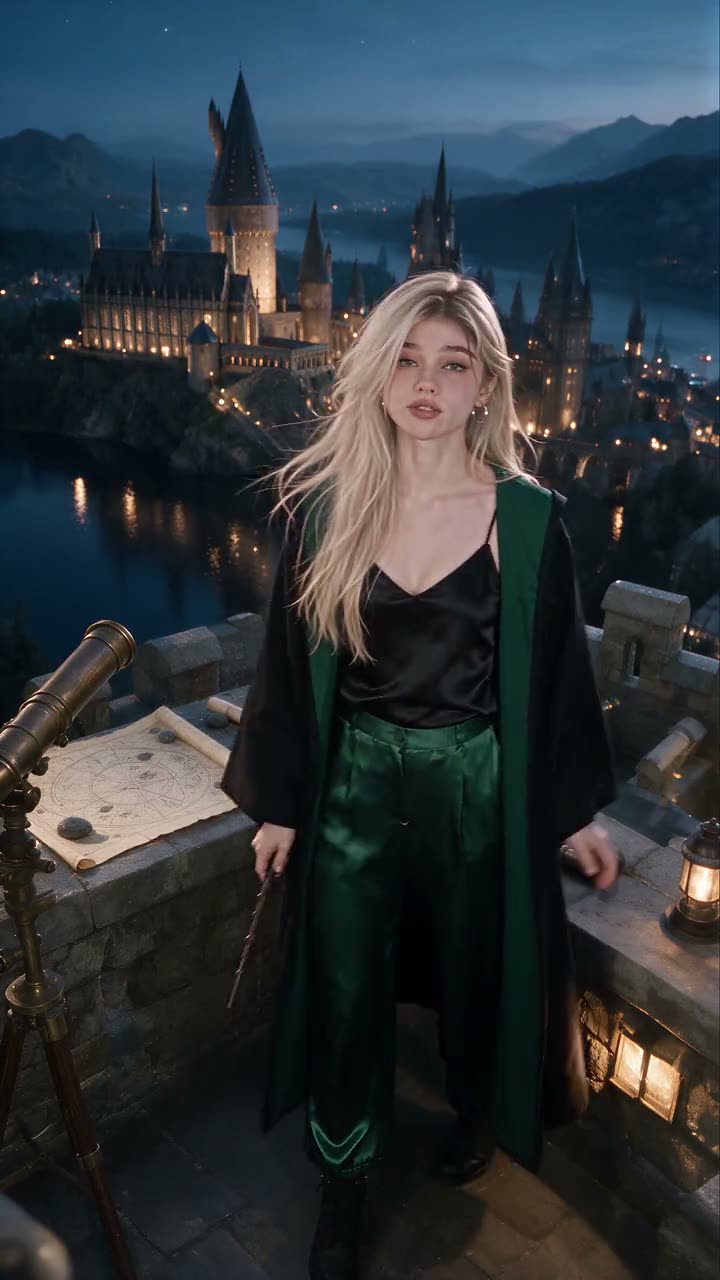 Malfoid dances on the tower at blue hourDance to a song · 30s
 Malfoid reads her hate mail livePhone-POV livestream · 30s
 Malfoid's love potion tutorialTutorial / how-to · 30s
Step 1: a character with a fixed look
Start from one clear reference picture and one written description (face, hair, outfit, voice, attitude). Reuse both in every video. Our Malfoid description is a good template: physical details first, then three words of personality.
Step 2: put the phone in the room
The single most important line. Name where the phone is and forbid everything else:
One uninterrupted take in continuous time through the front camera of the phone propped still on the table, eye level, the only viewpoint, no cuts, no camera movement.
For a walking tour use “the phone she holds at arm's length… gentle handheld movement”. Paint the opening frame with the same camera position so the video starts there.
Step 3: write 5 beats with exact lines
Thirty seconds holds about five beats. Give each a time range, one action, one quoted line and one sound. Open with a line that names the format (“Reading my hate mail. Live.”) and end on a turn: she softens, gets caught, or something goes wrong.
Step 4: sound
Add a short “Sound:” line with three to five room sounds (cutlery, owls, paper tearing, a crackling fire). With Seedance 2.5 the dialogue and sound come out of the same render, lip-synced.
Step 5: the avoid list
Avoid: No subtitles. No background music. No streaming-interface overlays, phone filters, or masks. No phone body or hand holding a phone in frame or in reflections. No change to her face.
Should you add a fake live-chat overlay?
We tried both. With a TikTok-Live style overlay (scrolling chat, viewer count, hearts) added in editing, our livestream shorts did well on TikTok and Instagram but sat at 0 to 159 views on YouTube Shorts, even though the uploads were public and Shorts-eligible. Our working theory is that YouTube treats Shorts that look like another platform's UI as reposts. Since 2026-10-15 we post the same videos without the overlay everywhere. That is one account's experience, not a rule.
Doing it in Cast
Cast does steps 2 to 5 for you. Pick a character, choose the Selfie / Livecamera (it adds “one continuous take from the character's own phone held at arm's length… the character talks straight into the lens like a livestream, no cuts”), type the idea in one line and pick a length. Your first 5-second video is free with no sign-up; a 10-second Standard video costs 99 credits after that. Cast clips are 5 to 15 seconds, so plan two or three beats, not five.
More guides
Updated